Admin Panel Management
Complete admin control system for managing all website content, vehicles, services, and settings through intuitive forms and interfaces.
Admin Dashboard
Dashboard Navigation
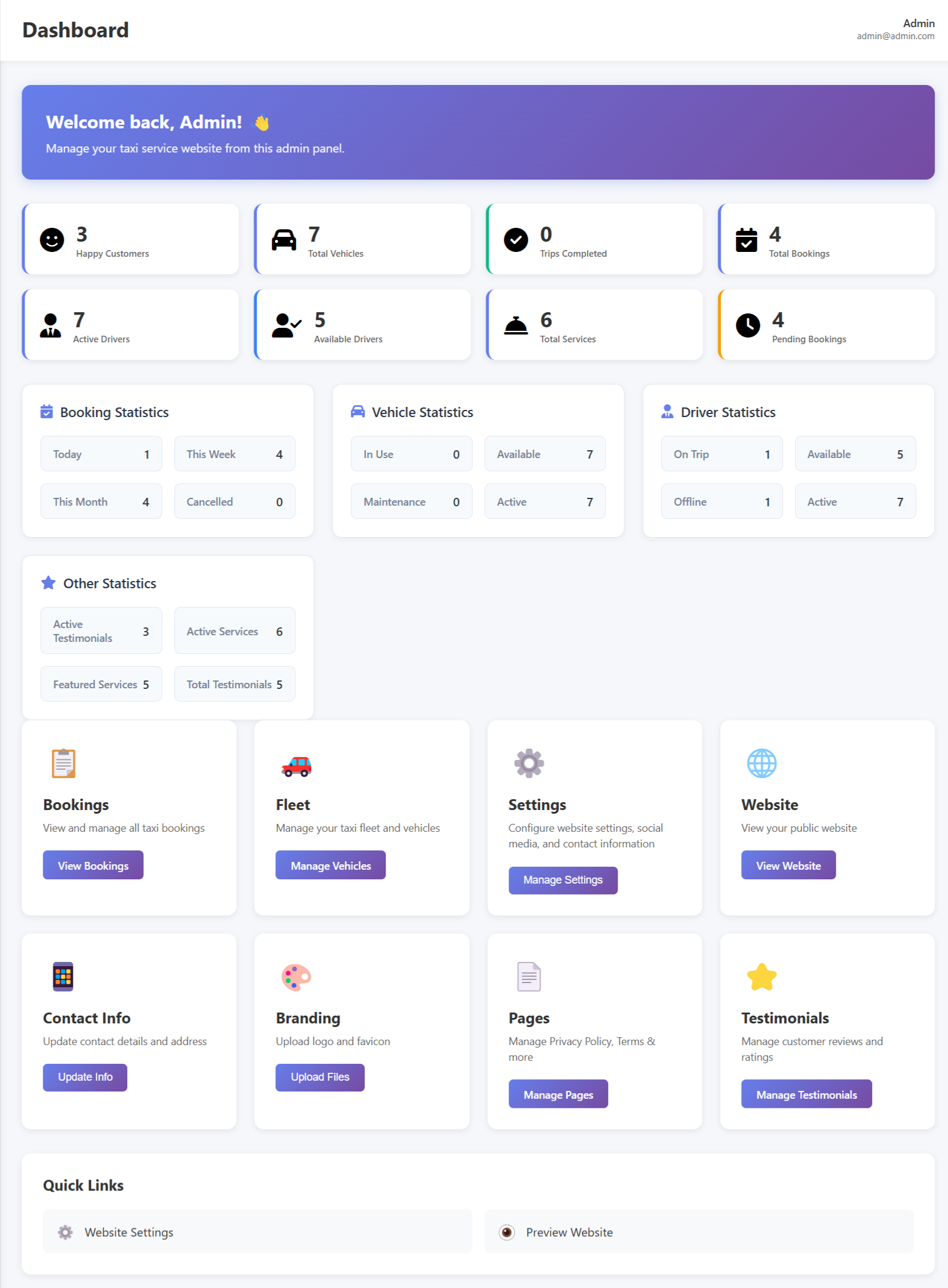
Complete admin dashboard with easy navigation to all management sections including vehicles, services, pages, and settings.
Vehicle Management
Add/Edit Vehicle Process
Fill the form with vehicle details and click Add/Update to publish on the website
1Click on Add Vehicle Button
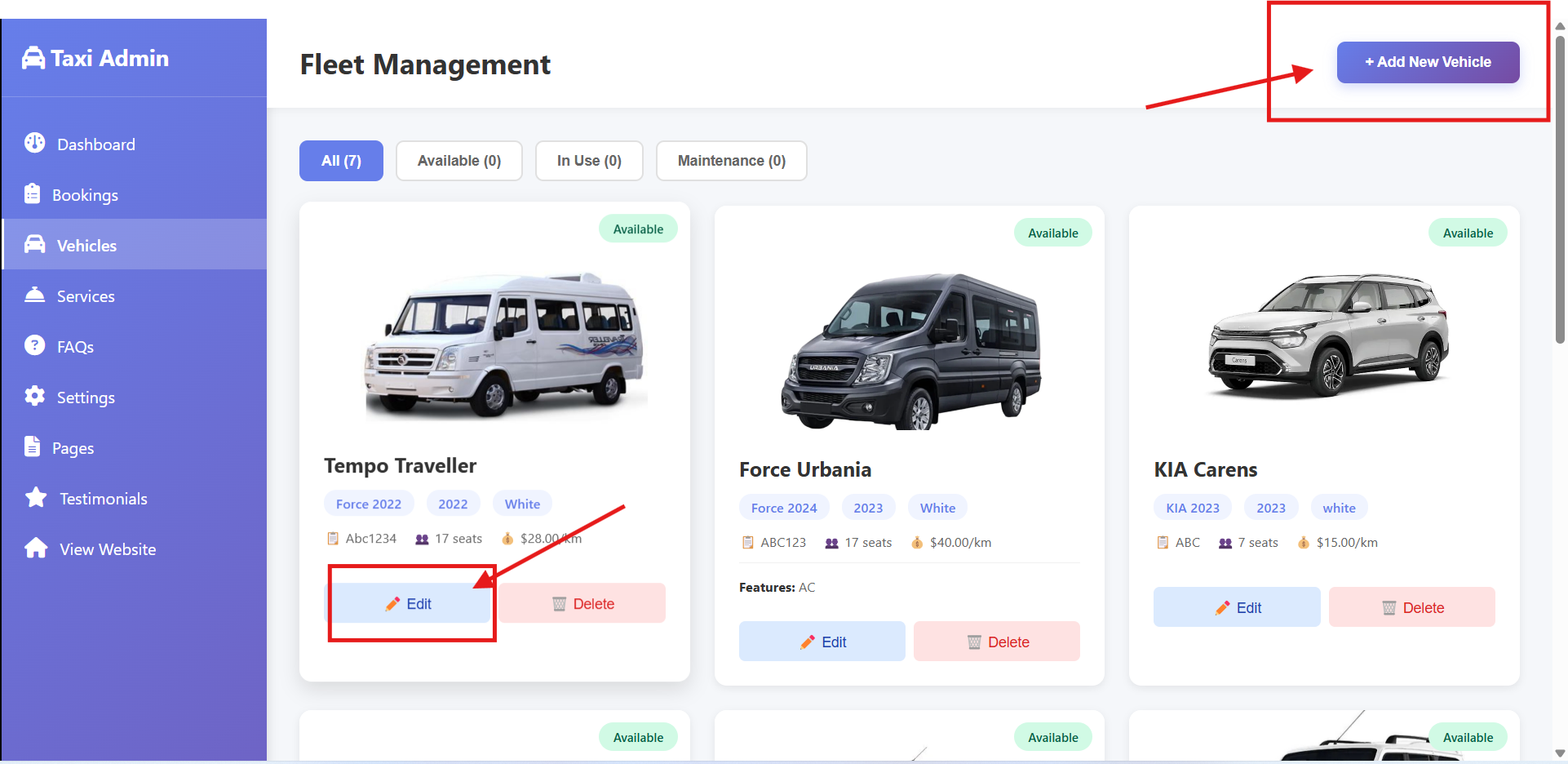
Click the Add/Edit button to open the vehicle form
2Fill the Form & Submit
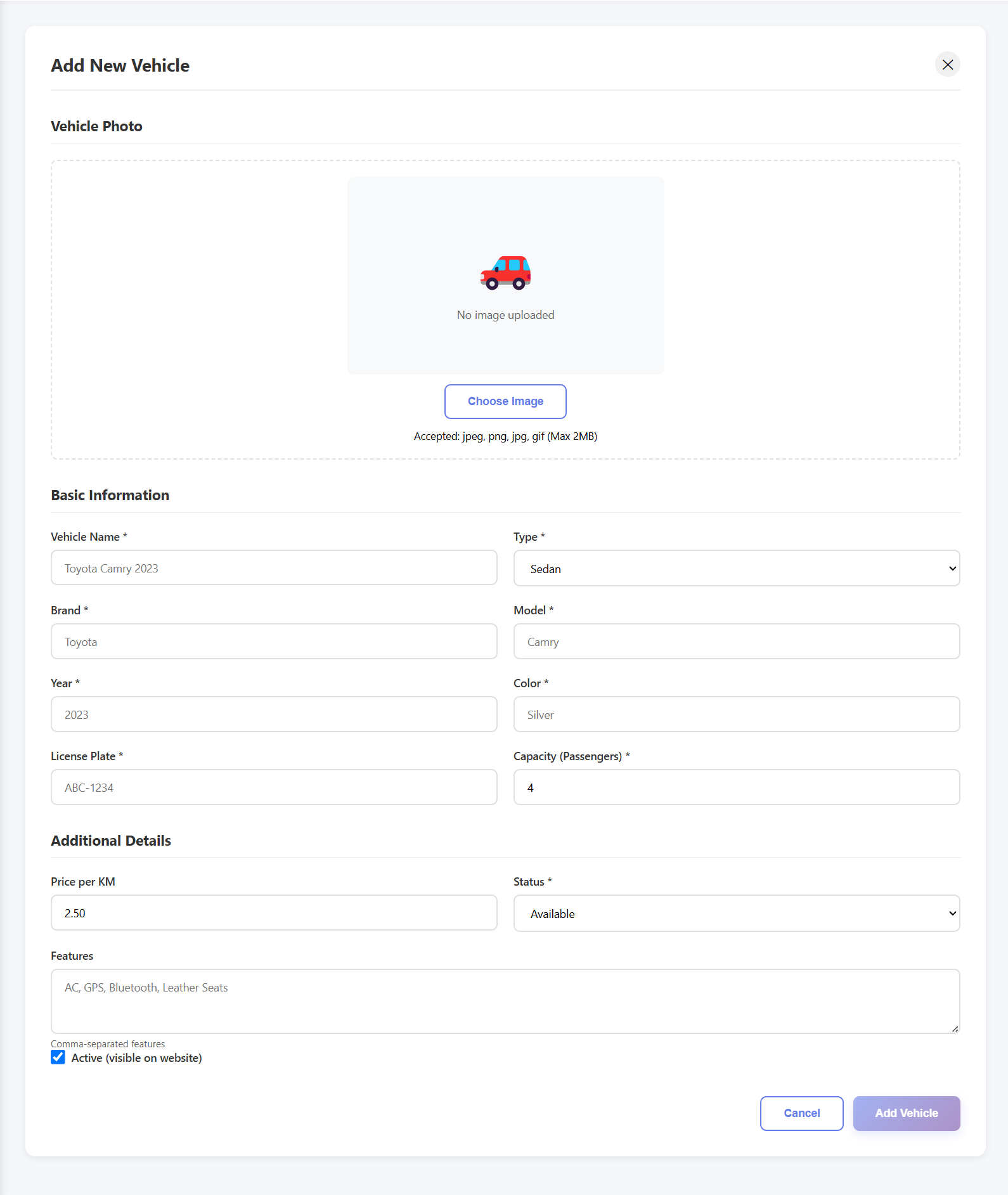
Enter vehicle details, upload images, and submit - vehicle goes live instantly
✨ What You Can Do:
- Add new vehicles with all details
- Edit existing vehicle information
- Upload multiple vehicle images
- Set pricing and capacity
- Manage vehicle availability
- Changes reflect instantly on website
Website Settings
Website Details & Settings
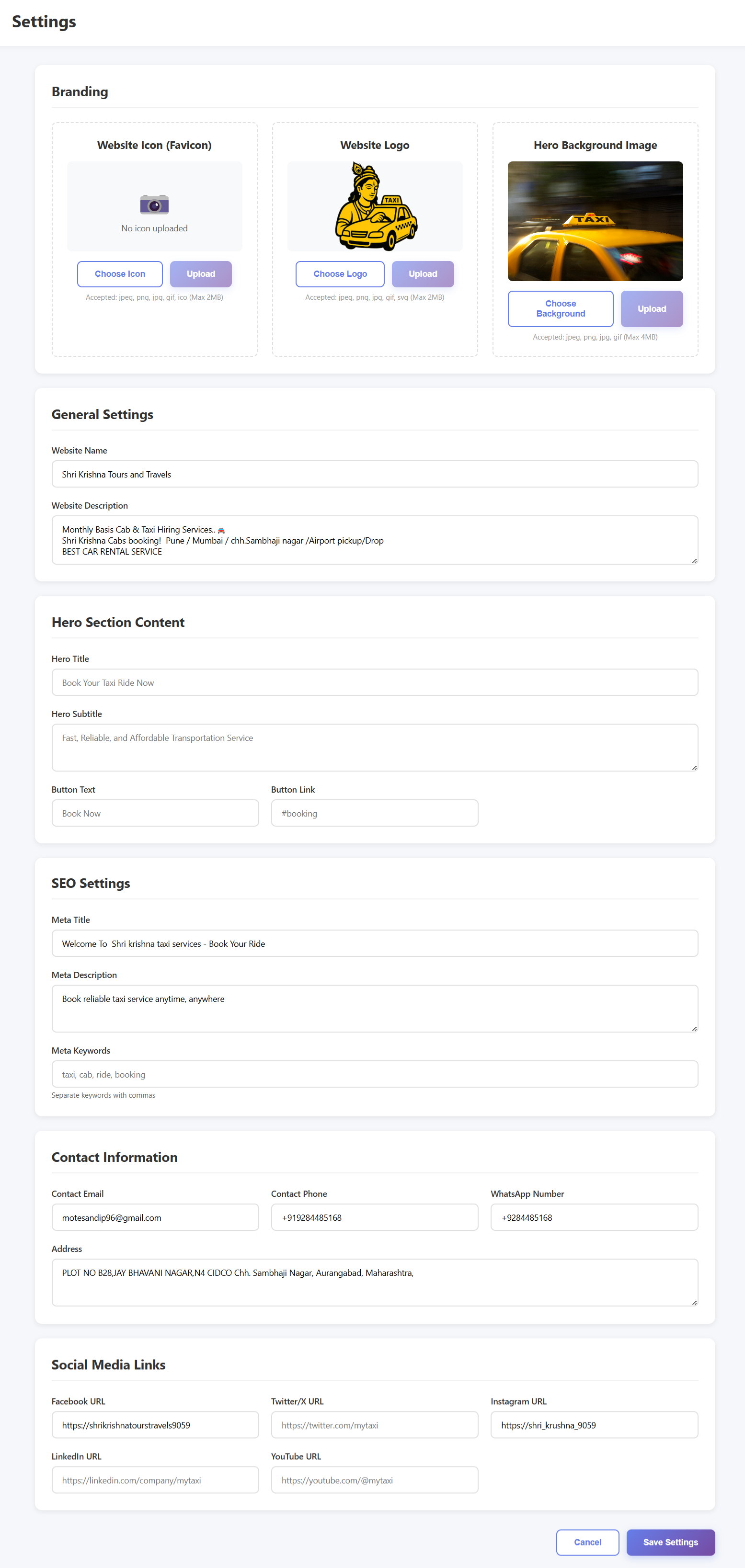
Website Configuration
- Company Name & Logo
- Contact Information
- Social Media Links
- SEO Settings
- Payment Gateway Setup
Real-time Updates
Instant Changes
Any changes made in admin panel reflect immediately on the website
No Code Required
All content management through user-friendly forms
Backup & Restore
Automatic backup system for all changes
Content Management
Services Management Process
Add and manage taxi services with pricing and features
1Click on Add Service Button
Click the Add/Edit button to open the service form
2Fill the Form & Submit
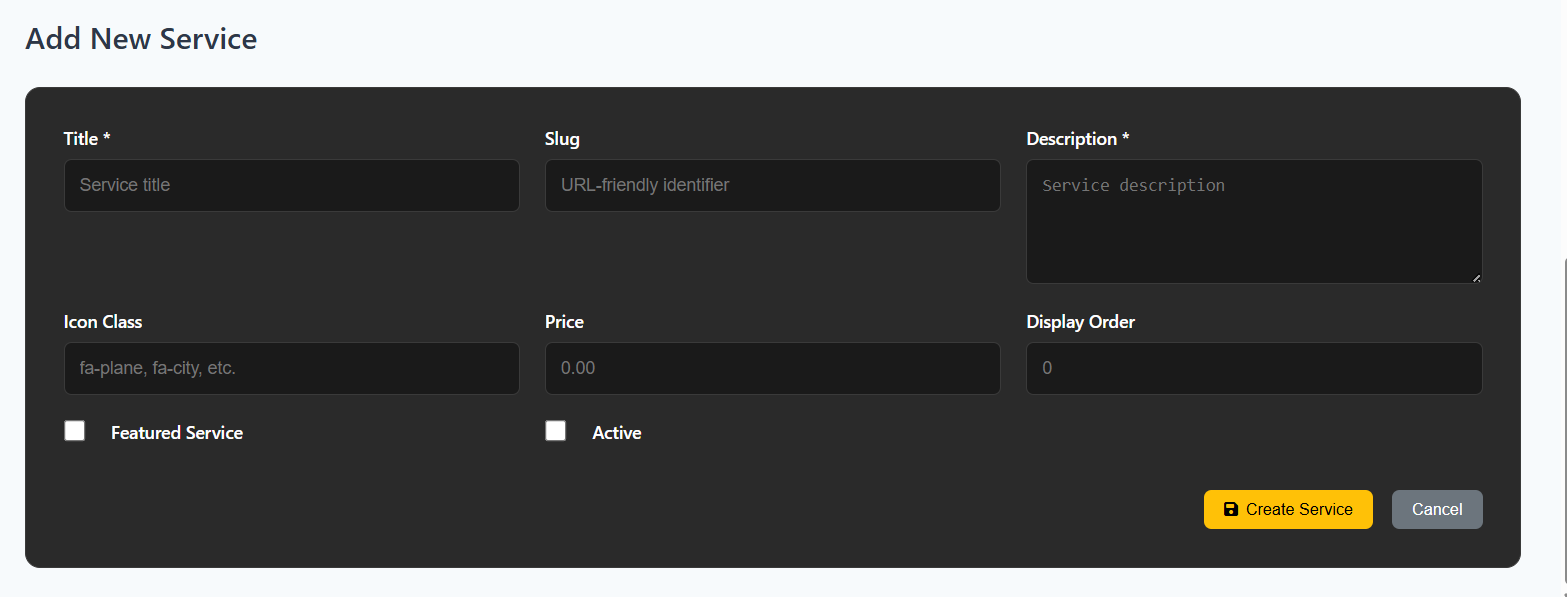
Enter service details and submit - service goes live on the website
Pages Management Process
Create and edit website pages like About Us, Terms, Privacy Policy
1Click on Add Page Button
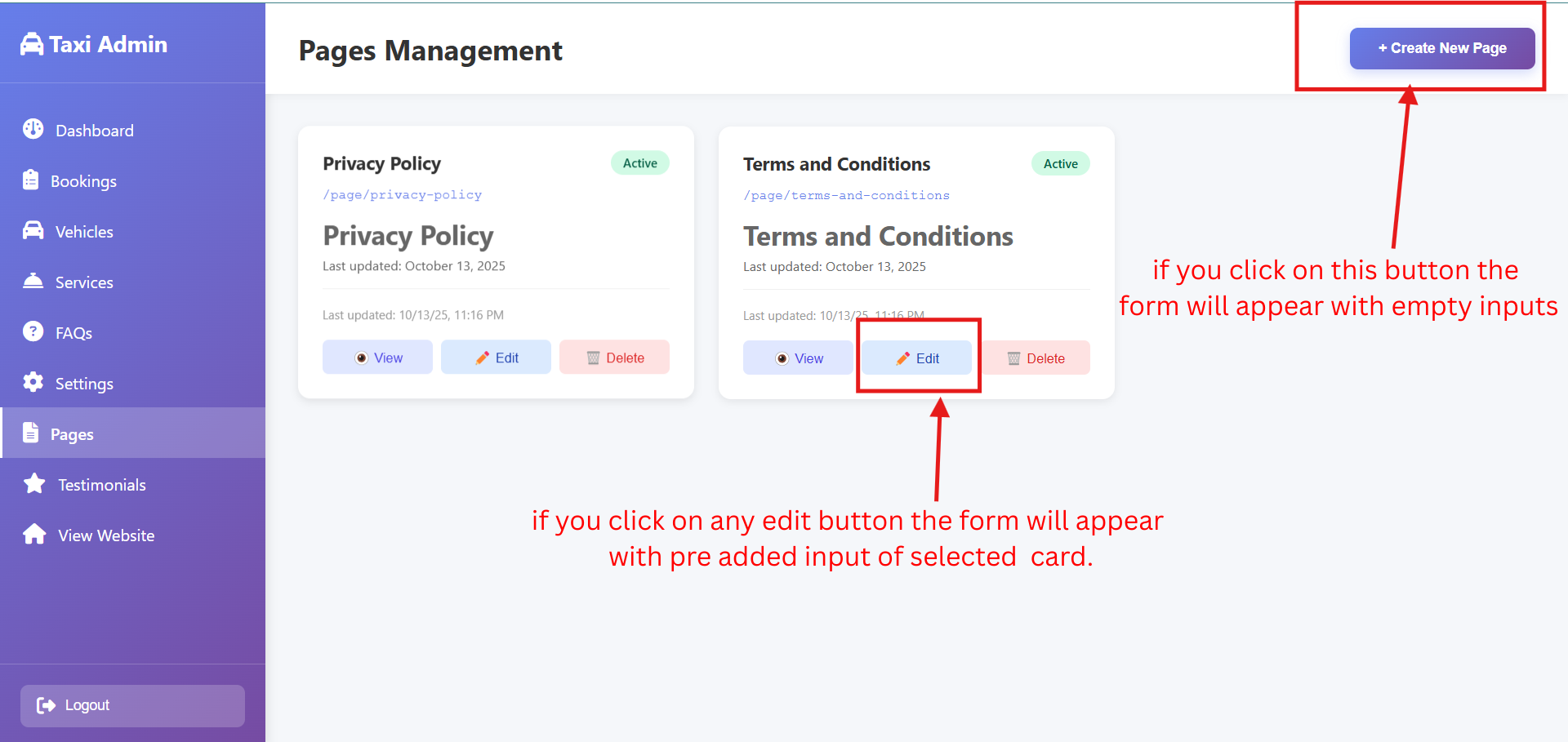
Click the Add/Edit button to open the page form
2Fill the Form & Submit
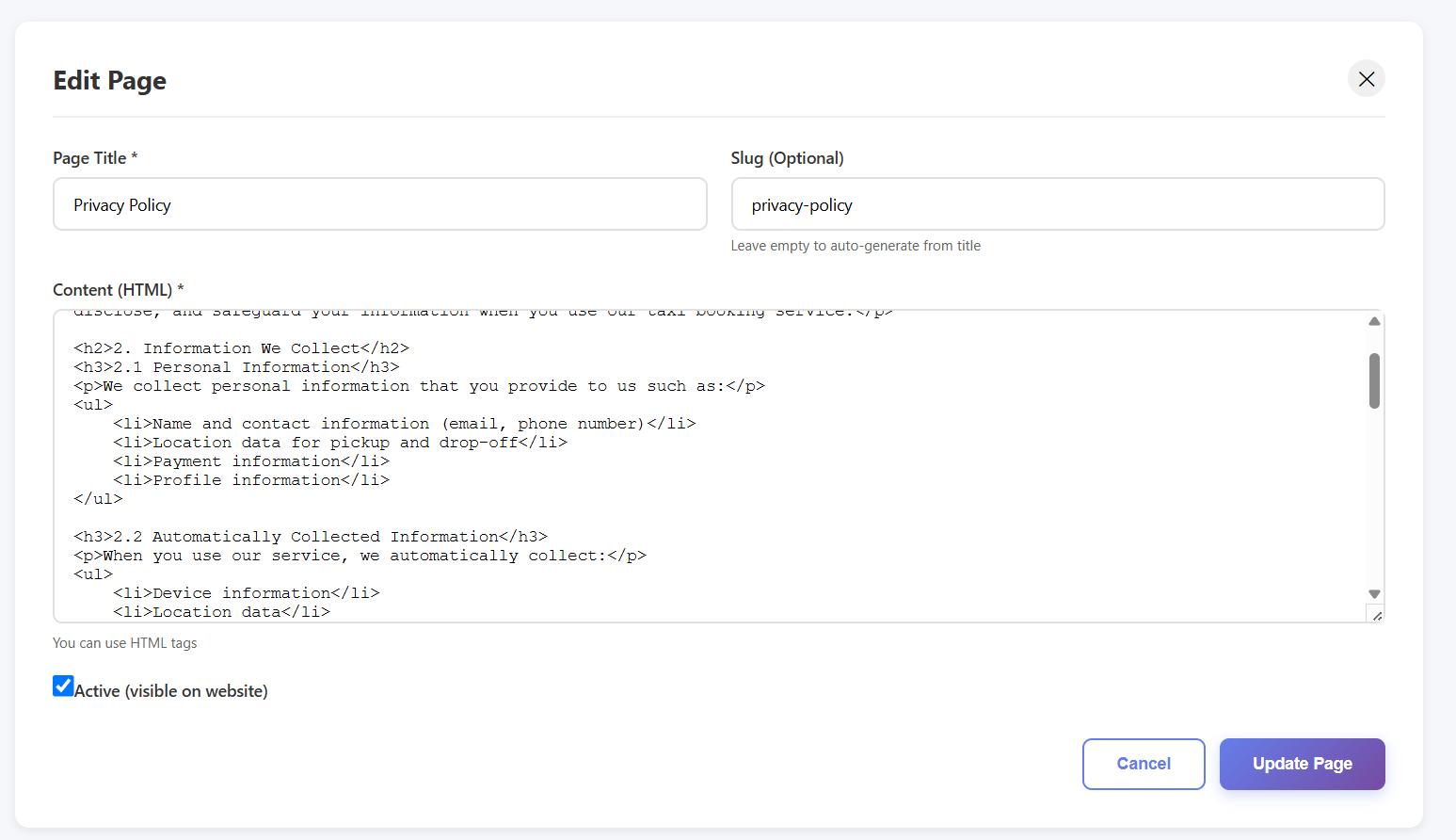
Enter page content and submit - page is published on the website
FAQs Management Process
Add frequently asked questions to help your customers
1Click on Add FAQ Button
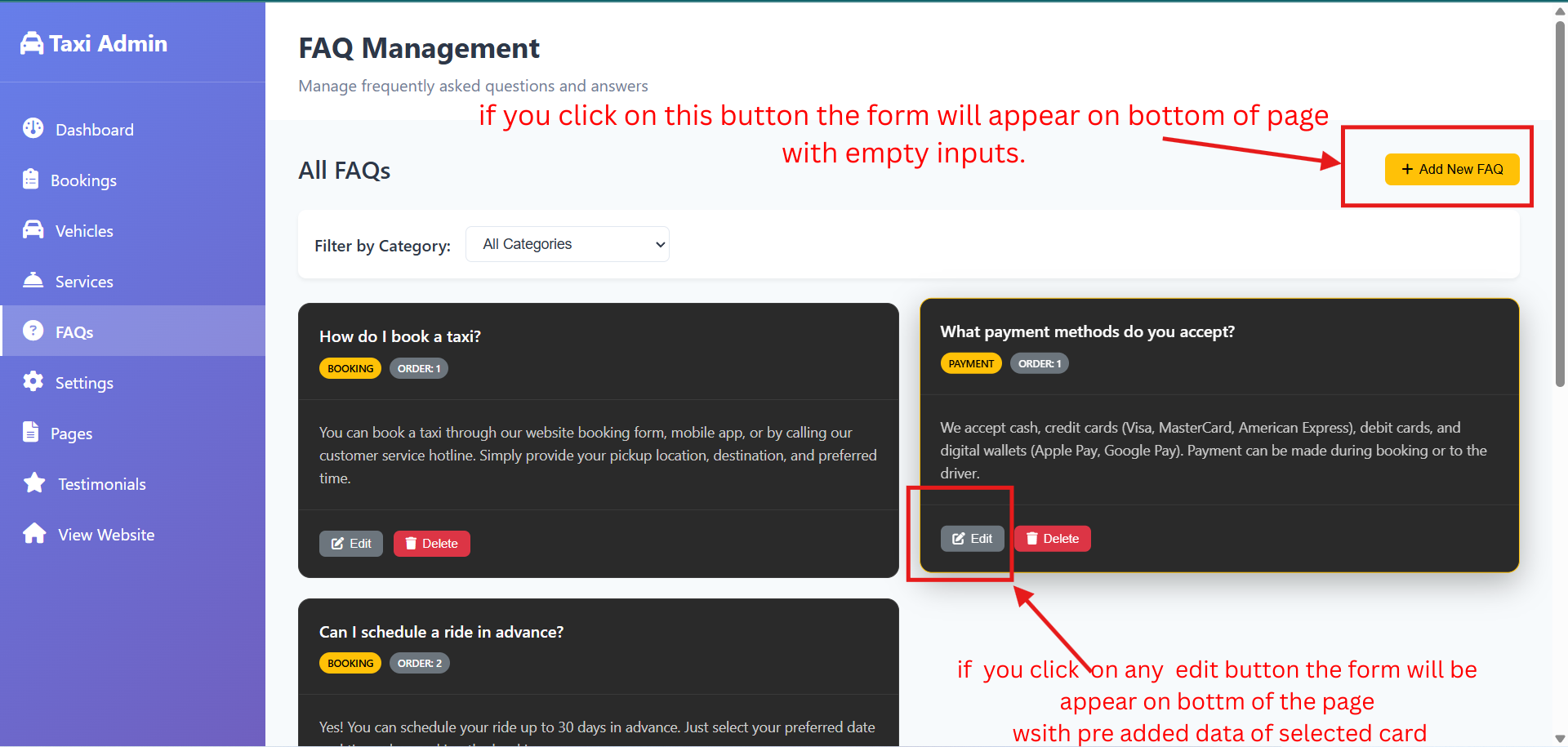
Click the Add/Edit button to open the FAQ form
2Fill the Form & Submit
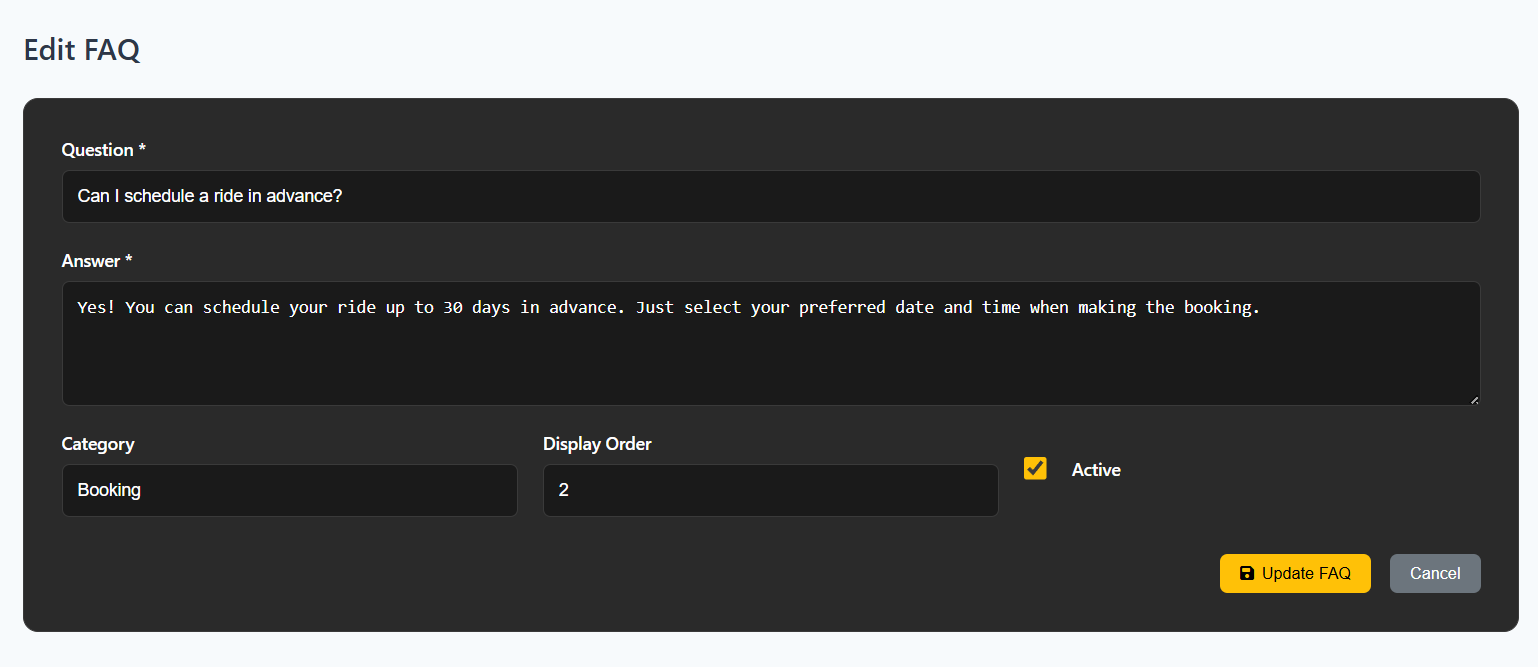
Enter question and answer - FAQ goes live on the help section
Testimonials Management Process
Showcase customer reviews and build trust
1Click on Add Testimonial Button
Click the Add/Edit button to open the testimonial form
2Fill the Form & Submit
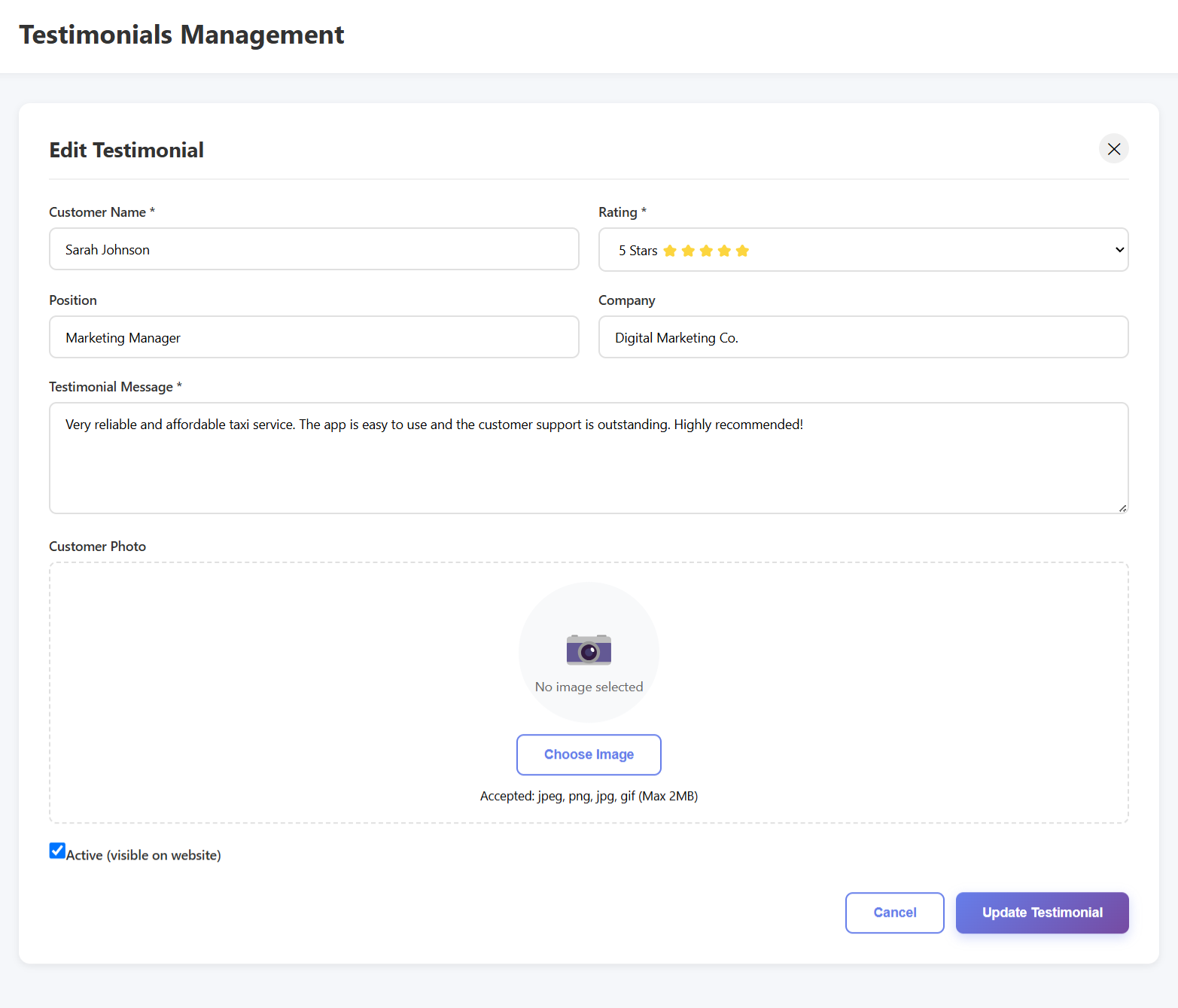
Enter customer review and submit - testimonial appears on homepage
Content Update Workflow
Login to Admin
Access the admin panel with secure credentials
Fill Forms
Use intuitive forms to add/edit content
Save Changes
Click Add/Update button to save
Live Update
Changes appear on website instantly